Updated March 2026
When getting started in Metrc, changes to correct information regarding plants, packages, transfers, or sales may need to be made. While the Metrc Support team can provide guidance on these changes, and help with more complex situations, in some instances you can easily correct an error made in the system on your own, which will save you time in contacting support.
If you’re ready to expand your Metrc skillset, read on for the most common questions we receive from licensees where corrections can be made by the user, listed by the “sections” within the system.
Please note: not all features may be enabled or in use in your market, so it is always recommended to refer to your state’s rules, regulations, and specific Metrc system configurations before making corrections on your own.
Plants
Can an immature plant batch or harvest batch, if incorrect, be renamed?
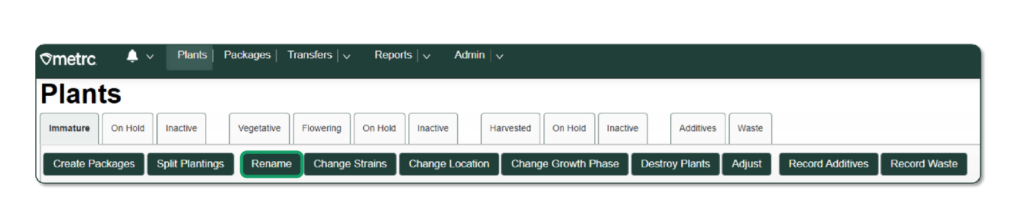
Yes! To rename a mislabeled immature plant batch or harvest batch, select the Immature plant batch or harvest batch and click the “Rename” button. Then update it to the correct name you would prefer to have displayed.
Important tip! The name for either immature plant batches or harvest batches must be uniquely named each time.
Can a strain name be updated before harvesting?
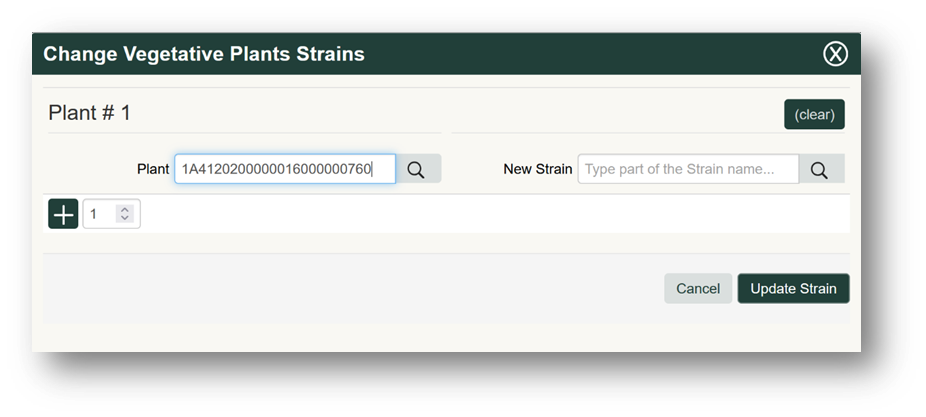
If mislabeled, a strain name can be updated before harvesting during any previous growth phase. To update, select the immature plant batch or plant, then click the “Change Strains” button, which is found within the Immature, Vegetative, or Flowering tab, and update the Strain Name to the correct one that you would like to be displayed.

What if the wrong plants were harvested into a harvest batch?
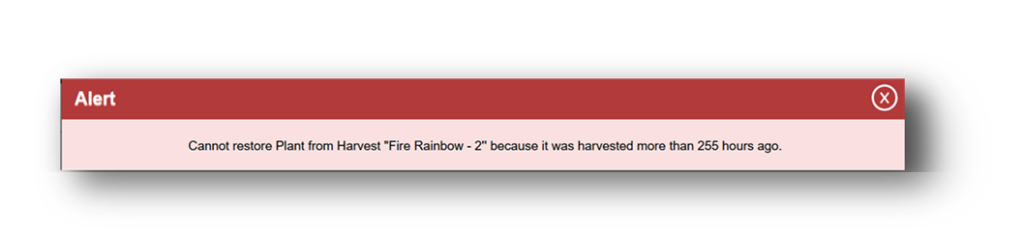
Depending on what previous actions have been taken, the “Discontinue” button in the Harvested Tab under the Plants area may be used to indicate which plant or plants you would like to “Restore” back to their previous state. This can only be used if it is within the time frame allowed by your regulatory agency.
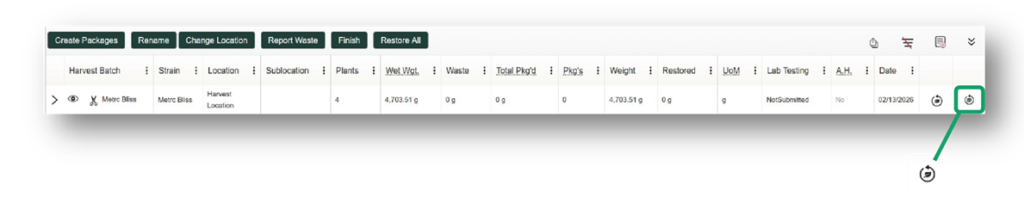
Important tip! In addition to regulations and time frame allowed, if any of the following actions have been taken prior to attempting to restore plants to their previous state, the “Discontinue” button cannot be used and an error message will appear.
- Created packages
- Recorded waste
- Tested
- Finished the harvest batch
Example: Error message if an action has already been taken

Example: Error message if the time set by the state regulatory agency has lapsed
Packages
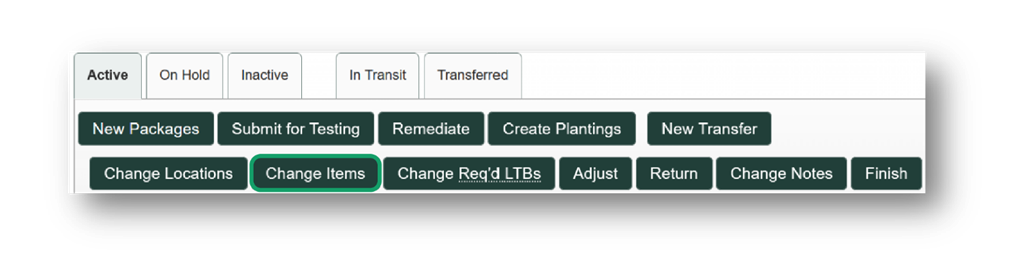
What if the wrong item is associated with a package?
To fix an incorrect item in a package, select the package and click the “Change Items” button. Then make the necessary item name correction.
Important tip! This action must be completed within 24 hours of the package creation.
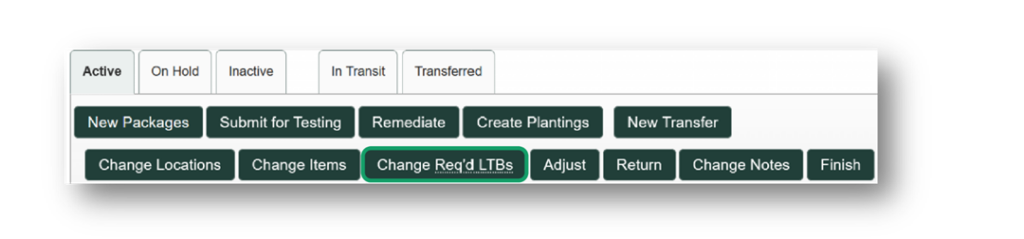
What if a test sample was created with the wrong required lab test batches selected?
Select the test sample and click the “Change Req’d LTB’s” button. Then make the necessary changes to ensure the proper test results are recorded for the product.
When counting inventory, the wrong quantity amount was associated with a package. How does this get fixed?
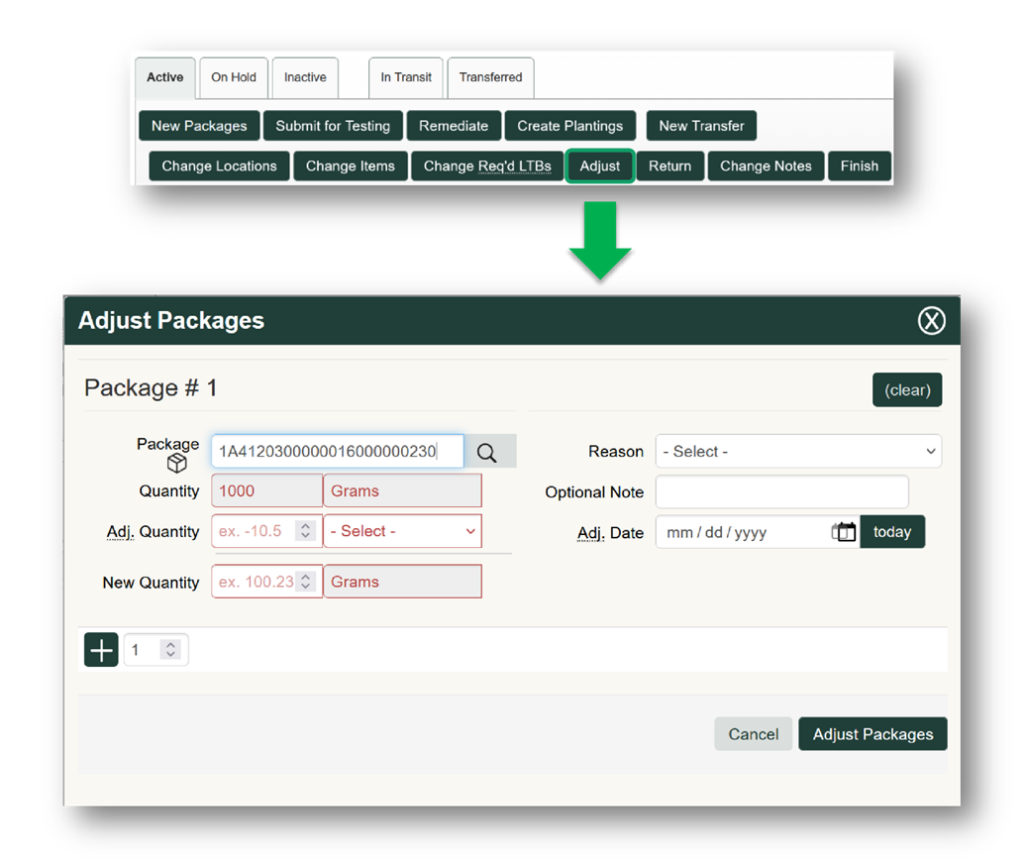
You can select the package and then click the “Adjust” button. Then complete the required information to indicate the proper quantity that the package ID represents. Adjustments can be either a positive or negative adjustment to a package ID depending on the discrepancy.
Important tip! Be prepared with reasoning for this change as all adjustments require a reason code, and a note explaining the purpose of the adjustment will also be required.
A package was created that is no longer needed. How is this corrected?
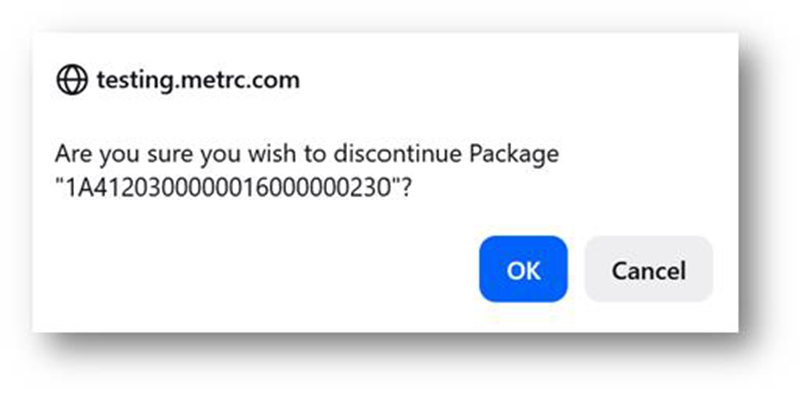
Select the “Discontinue” button on the far-right side of the grid, and the quantity that was used to create the package will be restored to the previous package, harvest or immature plant batch it came from.
Important tip! A package can only be discontinued so long as it hasn’t had another action (e.g. adjusted, submitted for testing, used in another package, or transferred) reported to it. If the package ID is discontinued, it will no longer be available for further use and will be stored within the “Inactive” tab for reference purposes only.
Corrections Involving Both Plants & Packages
How is inventory moved to a new location within the license?
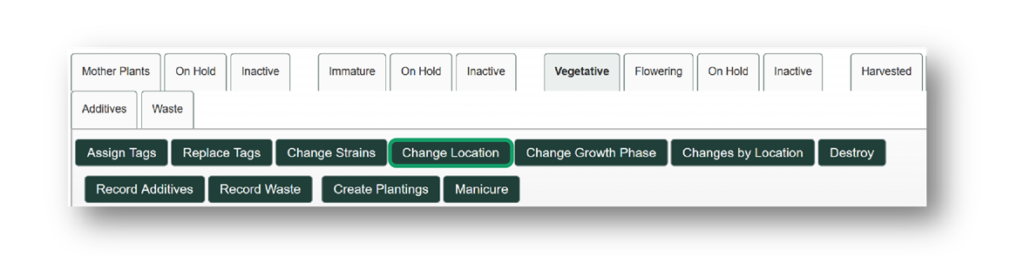
Select the plant or package to be moved to a new location, then click the “Change Location” button within the Immature, Vegetative, Flowering, or Harvest sections, or the “Changes by Location” button and update the location for the Plant(s), Harvest(s), or Package(s) selected.
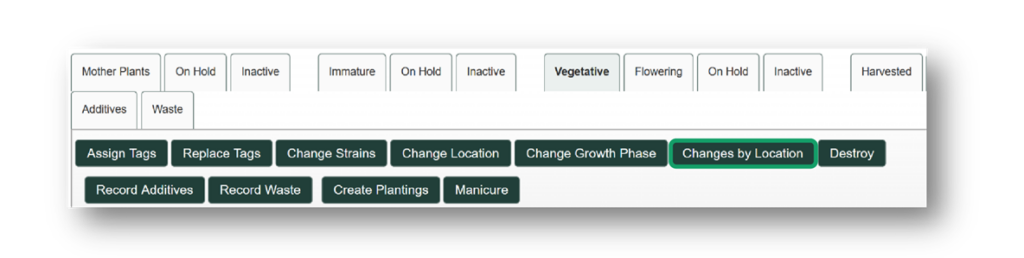
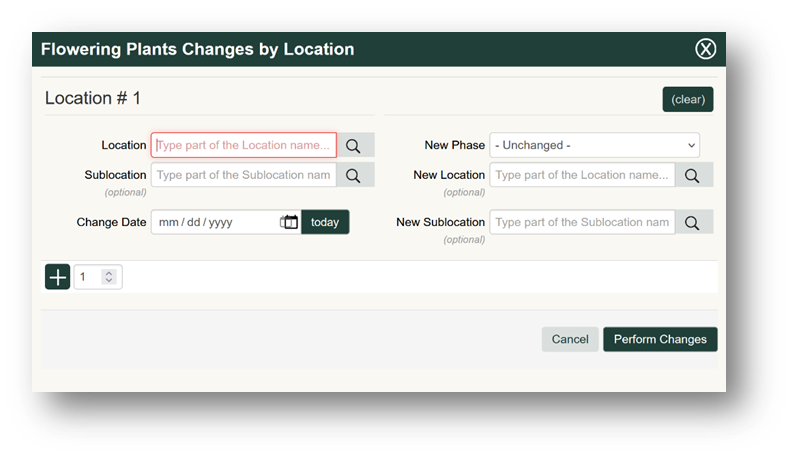
Important tip! Within the Vegetative and Flowering plants sections, you can also make updates to all plants designated within a specified location if the change is applicable for all plants in a specific location via the “Changes by Location”.
Transfers
The wrong package, route information, driver or vehicle details, or destination was added to a transfer. How is this fixed?
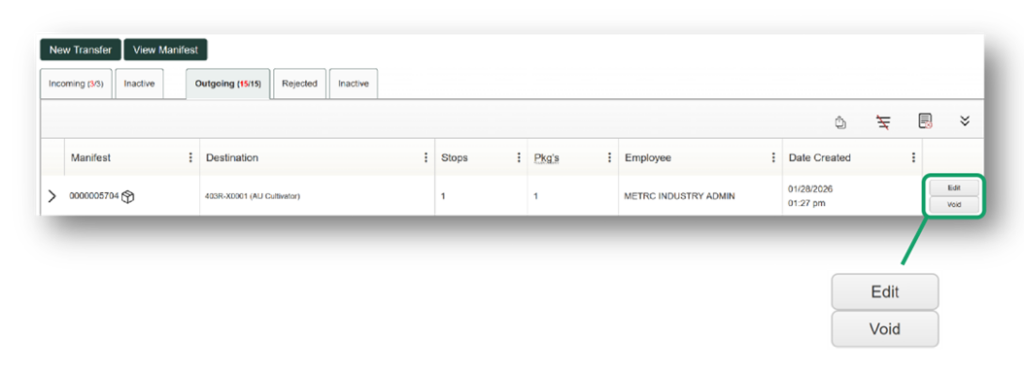
As long as the destination license has not received the transfer into their inventory, select the transfer needing to be edited then click the “Edit” button to make the necessary corrections, or select “Void” to delete the transfer entirely. If voided, all packages that were placed on that transfer will be returned into your active packages inventory in the original location.
Important tip! The option to choose “Edit” or “Void” will not be available if the transfer has been received.
Retail Sales
How is a discrepancy in sales quantity, price, or date/time corrected?
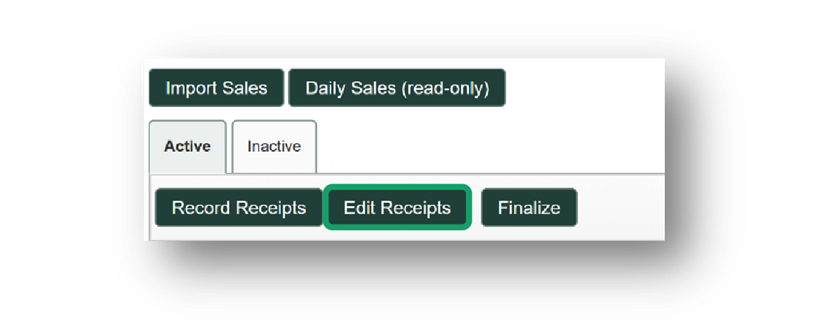
To do this, select the Sales Receipt to be edited and click the “Edit Receipts” button. Then make the necessary adjustments to the Sales Receipt
Important tip! If a quantity amount is changed, the difference will be reflected in the sales receipt from which the sale was reported. If you finalized the receipt originally, it would need to be unfinalized before anything can be edited.
Do you have other questions or need additional support?
We’re here to help! You can reach the Metrc Support team by logging a case in the Metrc Support portal, by phone at 877-566-6506 or by using our in-system live chat feature.